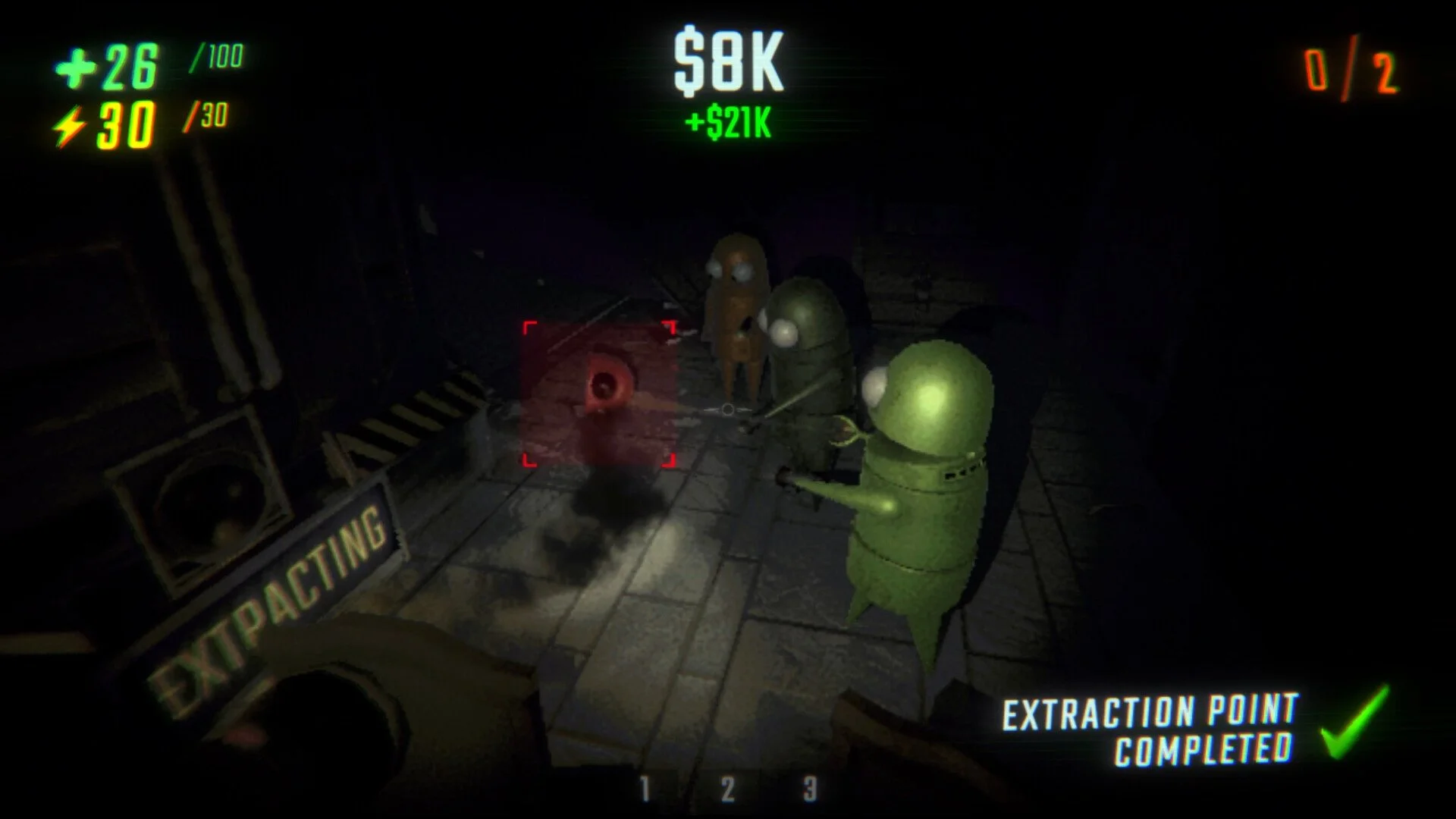
R.E.P.O. Best Graphic Settings

Image Credit: semiwork, R.E.P.O.
Tuning your graphics settings in R.E.P.O. is a delicate balance between making the game look great and keeping your FPS from dropping into PowerPoint territory. Here’s the best way to optimize performance without sacrificing too much visual quality.
Step 1: Fullscreen & FPS Tweaks
Before diving into fancy settings, make sure your game is running in the best mode possible:
Window Mode: Fullscreen – Always use fullscreen for the best performance. Windowed modes can hurt FPS.
V-Sync: OFF – Unless you experience screen tearing, turn this off for smoother gameplay.
Max FPS: Unlimited – If your PC is a beast, go all out. Otherwise, cap it at 60 or match your monitor’s refresh rate.
Step 2: The FPS Killers (Lower These First)
If your game is chugging, these settings are the main culprits:
Shadow Quality & Shadow Distance: Shadows are FPS vampires. Lower these to gain frames.
Light Distance: If things feel sluggish, reducing how far lights affect objects can help.
Motion Blur, Lens Distortion, & Chromatic Aberration: OFF – Unless you enjoy feeling like your character needs glasses, turn these off for a sharper experience. Some people, admittedly, do prefer this on though.
Bloom: Optional – A little glow never hurt anyone, but if you want max FPS, turning it off is an option.
Step 3: The FPS-Friendly Enhancers (Keep These Up)
Some settings don’t hurt performance much, so keep these high for better visuals:
Texture Quality (not listed but assumed): High – Unless your GPU is ancient, keep textures sharp.
Anisotropic Filtering: High – Improves texture clarity at almost no performance cost.
Anti-Aliasing (not listed but assumed): FXAA/TAA – Smooths out jagged edges without tanking FPS.
Step 4: The Finishing Touches
Grain & Glitch Loop: OFF – Unless you like your game looking like an old VHS tape.
Pixelation: Default – Unless you want extra crunch, leave this alone.
Gamma: Personal Preference – Doesn’t affect performance, just brightness levels.
Final Blurb
With all of this said, if your PC is one of the better ones out there you might as well max out these settings. But, if R.E.P.O. runs like a slideshow, lower shadows and lighting first. If you want sharper visuals, boost textures and anti-aliasing. And if your FPS is still bad… well, maybe it’s time for a PC upgrade.